EasyTreeEditor
software for visualizing, formatting, and preparing phylogenetic trees for publication (Windows)
Current version: 2.1. Download: easytreeeditor_V.2.1.zip
No installation required. Extract the program folder from the archive, place it in a permanent location on your computer, and run EasyTreeEditor.exe.
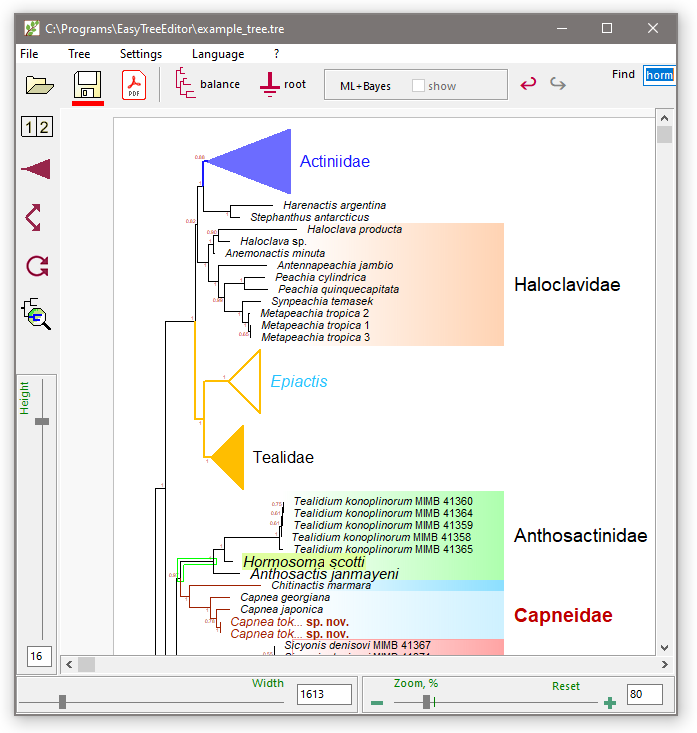
The program understands standard tree files (Newick or Nexus format) and displays them as rectangular cladograms. Currently, it has been tested with trees from IQTree and MrBayes. It also reads trees from other programs but has not been extensively tested on them.
Bug reports, questions, and comments: email in the program's "About" menu.
What's new in version 2.1:
- Added several interface languages (English, Spanish, Japanese, and others)
- Users can add translations for any language or edit existing ones
- Interface font size can be changed
- Can work with trees containing tens of thousands of taxa (tested on a tree with 130,000 taxa)
- Changed the logic of the slider that adjusts tree width - it's now "rubber-like", very convenient
- Many minor fixes
What's new in version 2.0:
- Code rewritten for Unicode encoding: taxon names can now contain any symbols, e.g., in the name "Rhombifera Pérès, 1956" the author's surname will be displayed correctly
- Increased processing speed, now independent of tree size
- Significantly improved display quality on high-resolution monitors
- Resolved scaling issues on different monitors and multi-monitor setups
- Added zoom function (without loss of quality)
- Added undo/redo capability for recent changes (up to 50 steps)
- Added file association setting via the menu — ability to open tree files with a double-click in Windows Explorer
Terms of use: free, but please provide a link to the publication (not ready yet)
Differences from analogs:
- Simple and extremely intuitive interface. Beautifying (color, lines, fills...) is quick and easy, without browsing through menu items
- Any labels can be edited directly on the tree like plain text (including italics, bold)
- Unlike all popular programs, you can use simultaneous different formatting within a single label (example: "Capnea tokranovi sp. nov., Kamchatka") and any symbols
- No limitations (unlike, e.g., FigTree) on duplicate taxon names or symbols used in text
- Very convenient for comparing the topology of two trees
- ML support and Bayesian probabilities from two trees can be combined ("95/0.99") in one tree automatically - the program itself finds the corresponding branches and copies where needed.
- Export tree for publication as PDF. You can specify the page width in mm equal to the page width in the journal intended for publication — very useful in some cases.
- ...and so on...
How does it work?
1. Opening a tree file
2. Defining the root and overall topology
3. Editing text (e.g., taxon names)
4. Font, label size, color...
5. Color fill
6. Find/Replace
7. Comparing two trees, combining support values
8. Saving a tree
9. Export for publication
1. Opening a tree file
(e.g., example.tre from the program folder):
- File → Open, or using the button, or drag and drop from Explorer onto the program window.
- The File menu maintains a list of recently opened files - very convenient.
- In Settings → File Associations, you can associate tree files (e.g., *.tre, *.tree) with EasyTreeEditor, so they open with a simple double-click on the file in Explorer.
Navigation:
- Move the tree with the left mouse button, wheel, or sliders.
- Zoom, stretch width and height - sliders on the left and bottom of the window.
2. Defining the root and overall topology
- Select (left-click) the branch you want to set as the outgroup.
- Use the "Root" button to set the root on that branch.
- Use the "Balance" button to bring the tree to a balanced, normal appearance.
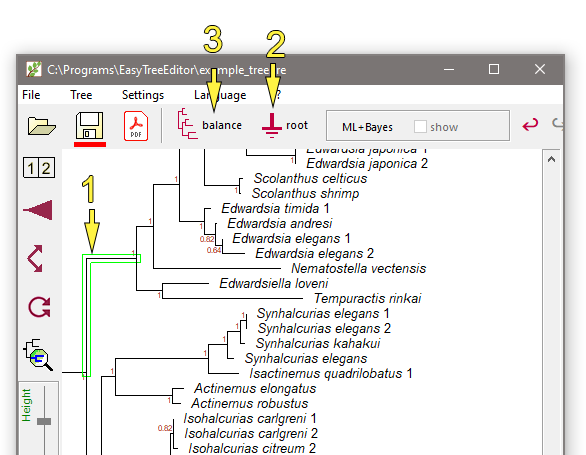
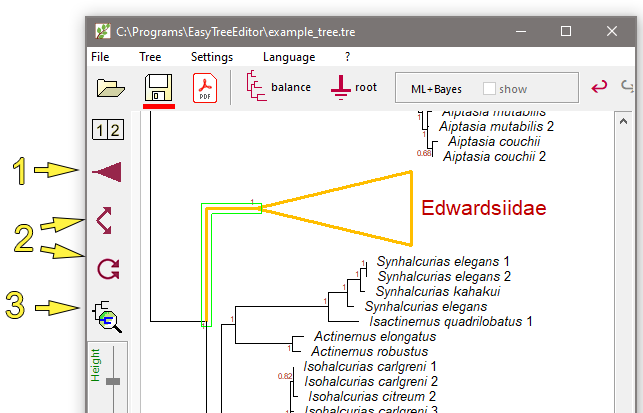
- Collapse/expand a branch: double-click on the branch or use button (1)
- Change the size of a collapsed branch (triangle length) with the mouse
- Swap branches: using buttons (2).
- Show branch in a separate window: using button (3). The branch opens in a separate window where it can be edited and saved as a separate tree.
3. Editing text (taxon names)
All labels are edited as plain text: simply place the cursor on the text and edit.
- Make part of the label italic or bold ("Capnea tokranovi n.sp. Kamchatka": select the text and press CTRL+I (italic) or CTRL+B (bold).
- Standard keyboard shortcuts (like in Word) work: CTRL+A — selects the entire label, CTRL+B and CTRL+I make the selected text or word bold or italic, double-click selects a word. Shortcuts for copy, cut, and paste (CTRL+C, CTRL+X, CTRL+V) also work.
- If you paste text with formatting (e.g., copied from Word), the formatting will be preserved.
4. Font, label size, color...
All these actions are done by right-clicking on different elements of the tree
(comment on fonts see below)
The typeface (Arial, Times...) is selected globally for the entire tree (intentional limitation): right-click on an empty area of the tree.
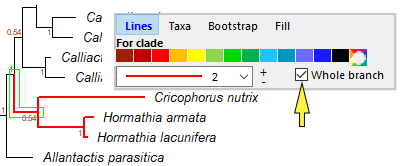
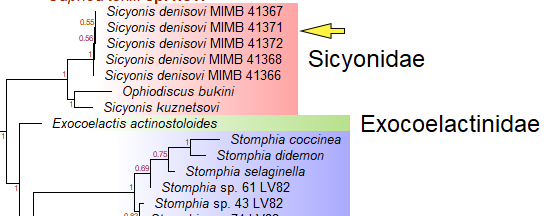
(Note the label indicated by the yellow arrow)
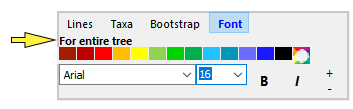
All other formatting can be applied either to the entire tree at once (right-click on empty area), or to individual tree elements (right-click on the element). Formatting can then be applied either only to the selected element, or to the entire branch (yellow arrow).
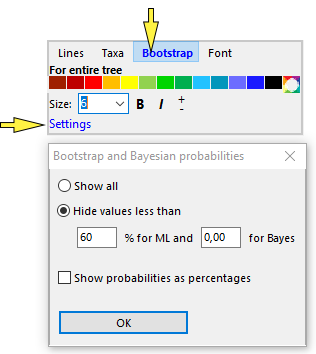
- In the "Bootstrap" tab, among other things, you can configure the display of branch supports ("Settings" button).
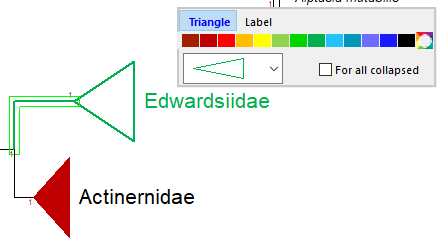
Right-clicking on a collapsed branch (on the "triangle") brings up a different settings window, but the principle is the same: you can change the parameters (appearance, color, format...) of the triangle and its label. You can apply the parameters to all collapsed clades of the tree at once.
5. Color fill
Individual branches/clades can be highlighted with color fill. Right-click on the basal (ancestral for the given clade) branch and select the Fill tab.
- Color fills are attached to the branch on which they were created.
- More precise color selection - using the color wheel button. There you can also use a slider to make the fill darker or lighter while preserving the hue, which is very convenient.
- Replace the color of the square markers with custom ones - double-click on them.
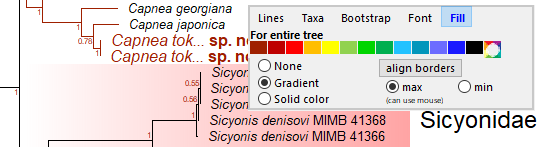
If there are multiple fills, you can manually align them by their edges with the mouse, or align them automatically based on the widest (max option in the image above) or narrowest (min.) by pressing the "Align..." button.
6. Find/Replace
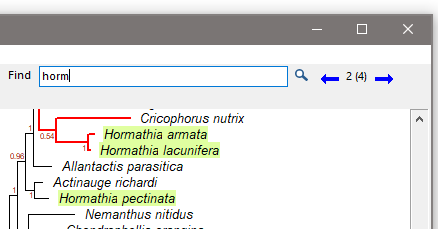
- Start typing in the search box, all matches are highlighted instantly. CTRL+F for search also works.
- Navigate through search results using the blue arrows, or F3 (forward) or SHIFT+F3 (backward). The tree scrolls automatically.
- Clear the (green) search result highlighting - ESC.
Advanced find/replace, replace with formatting (e.g., replace all "sp.nov." with "sp.nov.") - click the magnifying glass button, it's self-explanatory there.
7. Comparing two trees, combining support values
Comparing two trees is made as convenient as possible.
Example: compare the topology of ML and Bayesian trees based on the same set of taxa.
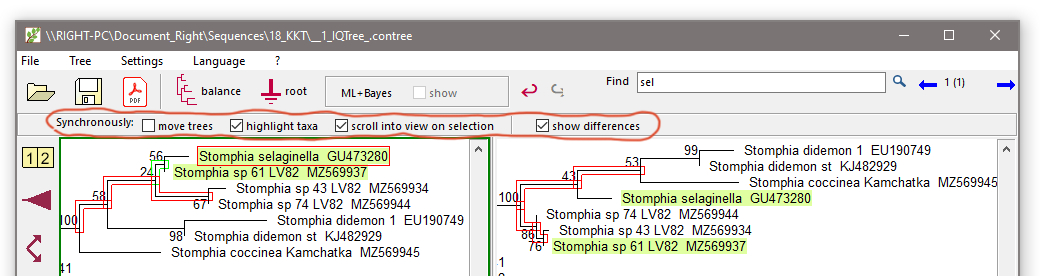
- Open the ML and Bayesian trees in two windows (open a second window - button [1|2] on the left panel).
- For convenience, you can synchronize tree movement (checkboxes circled in red in the figure)
- Checkbox Synchronize taxon selection: clicking on any branch in one tree instantly shows the corresponding branch and taxa in the other tree.
- Checkbox Show differences: highlights all differing branches with a red outline. Branches are compared by the list of their terminal taxon names.
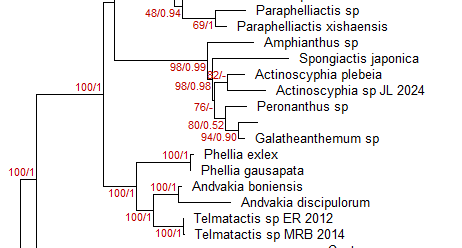
- Button ML+Bayes shows the interface for combining supports from two trees (not necessarily ML and Bayes). In this example, Bayesian probabilities from the right tree are copied to the left tree and displayed in the format ML / Bayes (100 / 0.98)
8. Saving a tree
The program saves trees in the standard Nexus format. All settings specific to EasyTreeEditor saved in the file (format, colors, fonts, color fills) should be ignored by other programs. Programs like FigTree should open these files correctly (but with loss of all formatting). However, compatibility with other programs is not guaranteed. For example, in EasyTreeEditor, a tree may contain several branches with identical taxon names — a completely standard situation in practice when multiple sequences of one species are used. FigTree will not open such a file, as it does not allow duplicate taxa, nor does it allow many of the symbols permitted in EasyTreeEditor. Therefore, if you need to use other programs, it is recommended to save the original files.
- Diskette button – standard file save dialog.
- Keyboard shortcut CTRL+S – instant save without prompts to the current file
9. Export for publication
For publication in a journal, the program exports the tree to PDF. All elements of the tree, including color gradients, are exported in vector format, so the image quality remains consistently high when viewing the PDF at different magnifications.
- Export via the menu File → Export to PDF: allows you to configure and save PDF parameters (page size, etc.)
- Export to PDF via the button: a PDF will be created with the parameters previously set in the menu
PDF can be easily converted to TIFF in Photoshop without loss of quality, directly to the required size for publication (instructions PDF_to_ TIFF.docx)
Program errors/bugs
Report bugs to the author: email in the program's "About" menu
Comment on using fonts in the tree
By default, the program only allows the use of safe fonts that are freely embeddable in PDFs and do not cause licensing issues: Arial, Times New Roman, Courier New, and some other standard system fonts.
If you need to use any other font installed on your computer, add the following line to the [settings] section of the settings.ini file: AllowAllFonts=1
Important warning: EasyTreeEditor embeds all used fonts into the PDF. This is standard practice that ensures the tree will look the same on any computer.
However, many commercial fonts (e.g., Calibri, Cambria, Helvetica Neue, Myriad, Garamond Premier and hundreds of others) prohibit or restrict such embedding and distribution unless the user has a specific (often paid) license for "embedding" / "document embedding" / "PDF distribution".
Furthermore, in scientific articles, readers and reviewers are accustomed to seeing standard fonts. Unusual fonts may create an impression of unprofessionalism or simply be annoying.
Therefore, it is strongly recommended to leave the AllowAllFonts setting disabled, unless you clearly understand why you are changing the font and that its license explicitly permits embedding.
For those who like formalities: the program is distributed "as is", the author is not responsible for anything.